
Writing personalized Upwork proposals takes time. Every job requires understanding the client’s requirements, preparing an application, explaining your solution, and sometimes creating a technical proposal or architecture diagram.
What if you could automate most of this process using AI?
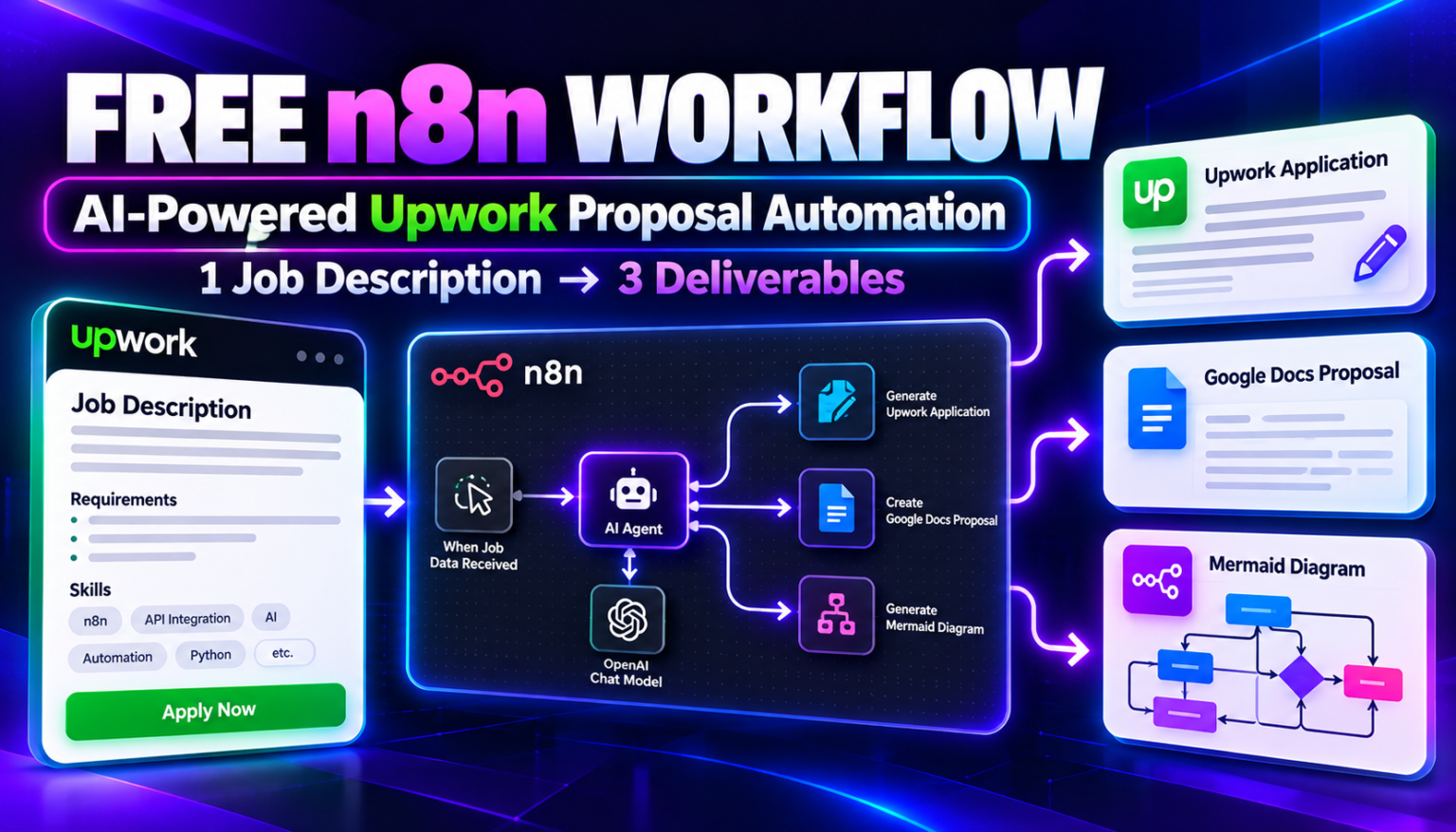
In this tutorial, we’ll explore an n8n Upwork Proposal Automation workflow that takes an Upwork job description and generates three useful deliverables:
- Upwork application copy
- A Google Docs project proposal
- A Mermaid.js architecture diagram
Instead of starting from scratch for every opportunity, you can use an AI-powered workflow to create a structured first draft and spend more time reviewing opportunities and communicating with potential clients.
What Is Upwork Proposal Automation?
Upwork Proposal Automation uses n8n and an AI Agent to transform a job description into a proposal package.
You simply submit the job description through an n8n chat interface. The AI Agent analyzes the requirements and calls three connected sub-workflows to generate the requested outputs.
The workflow is designed to simplify the proposal preparation process for freelancers, developers, automation agencies, and consultants.
Tools Used in This Workflow
Here are the main tools and technologies used in the uploaded workflow:
- n8n: Connects the chat interface, AI Agent, and sub-workflows.
- OpenAI Chat Model: Powers the AI Agent.
- Window Buffer Memory: Maintains conversation context across recent messages.
- Google Docs: Generates a structured project proposal.
- Mermaid.js: Generates code for a project architecture or workflow diagram.
The three generation tools are implemented as separate n8n sub-workflows.
How the Upwork Proposal Automation Works
Let’s break down the workflow step by step.
1. Submit an Upwork Job Description
The automation starts with an n8n Chat Trigger.
The chat interface displays an initial greeting asking the user to share an Upwork job description.
You can paste the complete job post, including:
- Project requirements
- Required skills
- Project objectives
- Technical requirements
- Expected deliverables
- Additional client instructions
The Chat Trigger passes the submitted job description to the AI Agent.
2. AI Agent Analyzes the Requirements
The AI Agent is the central component of this automation.
It receives the job description and follows its configured instructions to generate three deliverables:
- Mermaid diagram code
- Google Docs proposal
- Upwork application copy
The agent uses an OpenAI Chat Model to process the request.
It also connects to Window Buffer Memory, configured with a context window length of 10, to retain recent conversation context.
This makes the chat interface useful for continuing a proposal-related conversation.
3. Generate Upwork Application Copy
The first connected tool is Generate Application Copy.
This tool calls a separate n8n sub-workflow named:
3. Generate application copy
Its purpose is to generate application text based on the supplied Upwork job description.
The output is intended to provide a starting draft for your Upwork application.
You can review the generated text, add relevant experience, include project examples, and personalize the message before submitting it.
4. Generate a Google Docs Proposal
The second tool is Generate Google Doc Proposal.
It connects to another n8n sub-workflow named:
2. Generate Google Doc Proposal
The tool accepts the Upwork job description and returns a Google Docs proposal URL.
The main AI Agent is configured to use this URL in its final response.
This gives you a separate proposal document that can be reviewed, edited, and shared where appropriate.
5. Generate a Mermaid.js Diagram
The third tool is Generate Mermaid.js.
It calls the sub-workflow:
1. Generate Mermaid Code
The purpose of this tool is to generate Mermaid.js diagram code from the supplied job description.
Mermaid diagrams can help communicate technical ideas, system architecture, and workflow structures visually.
For automation developers and technical freelancers, this can make a proposal easier to understand.
The generated Mermaid code can be rendered using a compatible Mermaid editor or documentation environment.
6. Receive All Three Deliverables
Once the tools have generated their outputs, the AI Agent is instructed to return the results.
The expected deliverables are:
| Output | Purpose |
|---|---|
| Upwork application copy | Draft application message |
| Google Docs proposal | Structured project proposal |
| Mermaid.js diagram | Visual representation of the proposed solution |
The main workflow also instructs the AI Agent to replace the $$$ placeholder with the Google Docs proposal link and provide that link in plain text.
This creates a convenient starting point for preparing Upwork applications.
How to Import the Workflow into n8n
Follow these steps to get started.
Step 1: Download the workflow JSON
Download the main Upwork Proposal Automation JSON file.
Step 2: Open n8n
Log in to your n8n instance and create a new workflow.
Step 3: Import the JSON
Open the workflow menu and select the option to import the downloaded JSON file.
Step 4: Configure the OpenAI Chat Model
Connect your own OpenAI credentials to the OpenAI Chat Model node.
Step 5: Connect the three sub-workflows
The main workflow references three separate workflows:
-
- Generate Mermaid Code
-
- Generate Google Doc Proposal
-
- Generate application copy
Import or create these sub-workflows and ensure their workflow IDs match the references in the main workflow.
Step 6: Configure Google Docs
Set up the Google Docs integration and credentials inside the proposal-generation sub-workflow.
Step 7: Test the automation
Submit a sample Upwork job description through the chat interface.
Check whether all three tools execute successfully and whether the final response contains the expected outputs.
Important: The Main Workflow Requires Three Sub-Workflows
The JSON shared with this tutorial contains the main AI Agent workflow and references three separate sub-workflows.
It does not include the internal nodes and implementation of those three sub-workflows.
Therefore, importing only the main JSON will not provide a complete working setup. You must also import or build the three referenced sub-workflows and configure their connections.
Who Can Use This Automation?
This workflow can be useful for:
Freelancers: Prepare application drafts faster when responding to relevant job opportunities.
Automation agencies: Create structured proposal documents and technical diagrams for client projects.
Developers: Explain proposed technical solutions using Mermaid diagrams.
Consultants: Organize project requirements into a proposal format.
AI automation enthusiasts: Learn how to build AI Agents that call multiple specialized n8n sub-workflows.
Important Things to Review Before Submitting a Proposal
AI-generated proposals should never be submitted without reviewing them.
Before using the generated application:
- Verify that the proposed solution matches the client’s actual requirements.
- Add your genuine skills and relevant experience.
- Remove unsupported claims and unrealistic promises.
- Review the proposed project scope and deliverables.
- Check the Mermaid diagram for technical accuracy.
- Confirm the Google Docs link works and contains the correct information.
The workflow generates drafts and supporting assets. It does not guarantee that an application will win a project or that a client will respond.
Frequently Asked Questions
1. Does this workflow automatically apply to Upwork jobs?
No. The workflow generates application copy and proposal materials. It does not automatically submit applications on Upwork.
2. Can it create a Google Docs proposal?
Yes. The main workflow includes a tool that calls a separate Google Docs proposal-generation sub-workflow and expects a proposal URL in return.
3. What is the purpose of the Mermaid diagram?
It helps represent a proposed technical solution visually. This can be useful when explaining workflows, integrations, and system architecture.
4. Do I need all three sub-workflows?
Yes. The main workflow references three separate sub-workflows. They must be available and correctly configured for all three generation tools to work.
5. Can I customize the proposal format?
Yes. You can modify the instructions and the underlying proposal-generation sub-workflow to match your preferred proposal structure and branding.
Final Thoughts
Preparing Upwork applications doesn’t have to mean starting from a blank page every time.
With n8n and an AI Agent, you can build a system that generates application copy, creates a Google Docs proposal, and prepares a Mermaid.js diagram from a single job description.
The biggest advantage is having a repeatable starting point for your proposal process.
Start with the main workflow, connect the three sub-workflows, test the outputs, and customize the generated content to reflect your actual experience and proposed solution.
Want to learn more about practical AI automation?
Get More Free AI Automation Workflows
Want more practical n8n workflows, AI automation tutorials, and ready-to-use templates?
LearnAI Tools
Join our channels to receive updates when new workflows and tutorials are published.
- Telegram: Join for new workflow releases, tutorials, and automation tips.
- WhatsApp Channel: Follow for quick updates and links to new workflow downloads.
Follow All Market Updates for more automation tutorials, AI tools, and practical workflow ideas.
Build smarter. Automate repetitive work. Focus on winning the right projects.