


Introduction
Creating social media content from articles can take time. You need to read the article, identify the most important points, write captions for different platforms, and design attractive carousel slides.
What if you could automate most of this process?
In this guide, we’ll explore a free n8n workflow that helps turn an article URL into an AI-generated social media carousel and platform-specific post copy. It combines Google Sheets, Google Gemini, the Presenton API, and n8n to bring several content creation steps into one workflow.
You can download the workflow JSON, import it into your n8n instance, configure your credentials, and customize it for your content workflow.
What Does This AI Carousel Maker Workflow Do?
The Gamma AI Carousel Maker workflow is designed to transform an existing article into social media content.
Here’s what it does:
- Reads article information from Google Sheets.
- Fetches the article content using an HTTP request.
- Uses Google Gemini to extract the headline, main content, important facts, and relevant quotes.
- Prepares the cleaned article content for presentation generation.
- Sends the content to the Presenton API to generate a three-card social media carousel with AI-generated illustrations.
- Checks the presentation status and waits while generation is in progress.
- Uses Google Gemini to write platform-specific posts for X, LinkedIn, and Instagram.
- Saves the generated carousel link and social media copy back to Google Sheets.
The workflow is useful for bloggers, publishers, content marketers, and social media managers who regularly repurpose articles for multiple platforms.
Tools and Requirements
Before importing the workflow, prepare the following:
| Tool | Purpose |
|---|---|
| n8n | Connects and runs the automation steps |
| Google Sheets | Stores article URLs and generated content |
| Google Gemini API | Extracts article information and writes social media copy |
| Presenton API | Generates the visual carousel presentation |
| HTTP Request nodes | Fetches article content and communicates with the presentation API |
You will need accounts and valid API credentials for the services used in your configuration. API usage may incur charges depending on your plans and usage.
How the Workflow Works
Step 1: Start the workflow
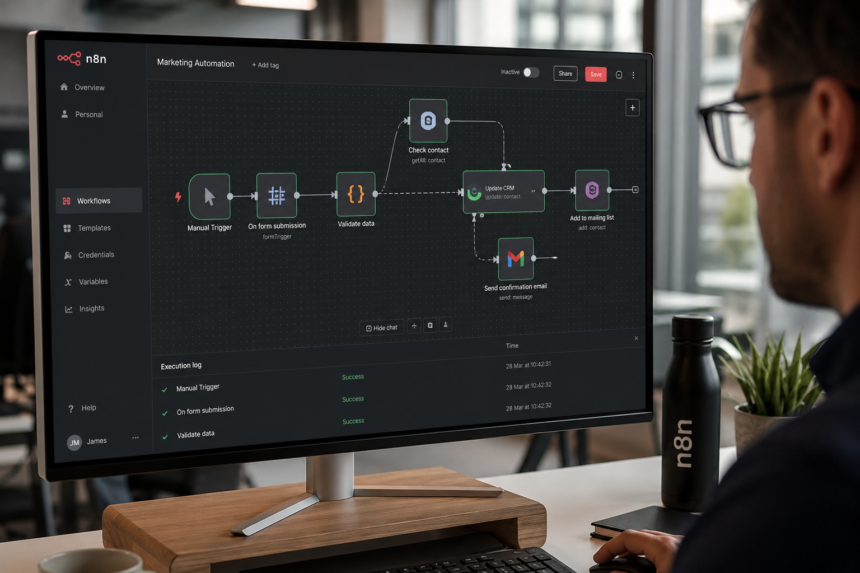
The workflow begins with an n8n manual trigger. You can start it by clicking Execute workflow.
This is useful when you want to review and process articles individually before generating social media content.
Step 2: Retrieve the article URL from Google Sheets
The Google Sheets node named Get Article retrieves article data from a spreadsheet.
The following HTTP Request node uses the article’s URL field to fetch its content.
To use this setup, organize your spreadsheet so each row contains a valid article URL. You can extend the sheet with article titles, processing status, or other fields as needed.
Step 3: Extract the important article information with Google Gemini
Web pages often contain navigation menus, advertisements, cookie notices, related articles, and other content that isn’t useful for a social media carousel.
The Simplify Article node sends the fetched HTML to Google Gemini with instructions to remove irrelevant page elements and extract the article’s core information.
The requested output includes:
- Article headline
- Main article text
- Important facts and statistics
- Relevant quotes
This gives the next stage cleaner material to work with.
Important: Article extraction depends on the source website. Some websites block automated requests or load their content through JavaScript. You may need to adjust the scraping step for those sites.
Step 4: Prepare the content for carousel generation
A JavaScript Code node cleans the extracted text and stores it in a field called presentationContent.
The workflow then sends this content to the Presenton API.
The configured presentation request specifies:
- Three social media cards
- A social-media-oriented format
- AI-generated illustrations
- A portrait 4:5 card dimension
- A modern visual theme
- A headline and introductory prompt for the first card
- Main points and short explanations for the following cards
The result is intended to be a concise, visually engaging summary of the original article.
Step 5: Generate the carousel
The Create Post with Gamma HTTP Request node sends the article content and presentation instructions to the configured Presenton API endpoint.
The workflow then waits and checks the presentation status. If generation has not completed, it waits before checking again.
Once the presentation is marked as completed, the workflow continues to the social media copy generation stage.
Generation time and output quality can vary depending on the API, article content, and service availability.
Step 6: Write social media captions with Google Gemini
The workflow uses a Gemini-powered content-writing agent to create separate posts for three platforms.
X
The prompt requests a concise post with a strong opening hook and a maximum of 280 characters.
The prompt requests a professional but conversational post, with context, insights, and line breaks for readability.
The prompt requests a casual, visual-first caption with an engaging opening and short paragraphs.
The workflow also uses a structured output parser to organize the generated content into three fields: twitter, linkedin, and instagram.
These are generated drafts. Review them for factual accuracy, tone, formatting, and platform suitability before publishing.
Step 7: Save the results to Google Sheets
The final Google Sheets node updates the corresponding row with the generated carousel link and the three social media drafts.
The configured fields include:
Gamma OutputTwitter CopyLinkedIn CopyInstagram Copy
This makes it easier to keep the original article and its generated social media assets together in one place.
The supplied workflow stores the results in a separate spreadsheet from the initial article input. You can change this configuration to fit your own content management process.
How to Import the Workflow into n8n
Follow these steps to get started.
- Download the workflow JSON file from the download section below.
- Open your n8n instance.
- Open the workflows area and select the option to import a workflow from a file.
- Select the downloaded JSON file.
- Review the imported nodes and their connections.
- Connect your Google Sheets and Google Gemini credentials.
- Configure the Presenton API endpoint and authentication using your own credentials.
- Check that the input spreadsheet contains a valid article URL.
- Execute the workflow and inspect each node’s output.
- Confirm that the carousel link and generated captions are saved to the expected spreadsheet row.
Security tip: Never share a workflow JSON file containing live API keys, bearer tokens, passwords, or private credentials. Use your own credentials and secure credential storage in n8n.
Important Things to Check Before Running It
The supplied workflow is a starting point that you should configure and test in your own environment.
- API authentication: Add your own credentials for Google Gemini and Presenton.
- Article access: Check that the selected URL can be fetched by the HTTP Request node.
- Presentation status: Confirm that the API returns the status fields expected by the workflow.
- Google Sheets mapping: Verify that the row number and output columns match your spreadsheet.
- Generated content: Check that the carousel and captions accurately represent the source article.
- Publishing: This workflow generates content and stores it in Google Sheets. It does not directly publish posts to social media platforms.
The workflow uses a manual trigger, so it does not automatically process new spreadsheet rows on a schedule without further customization.
Who Can Use This Workflow?
This automation can be useful for:
- Bloggers: Repurpose published articles into carousel content.
- Digital marketing agencies: Prepare social media drafts for clients.
- Content teams: Reduce repetitive content preparation tasks.
- News publishers: Turn selected articles into visual summaries.
- Solo creators: Create a starting point for cross-platform content production.
The biggest benefit is having article extraction, carousel generation, and social media copy creation connected in one workflow.
Download the Free n8n Workflow JSON
You can use the workflow as a starting point for your own automation projects.
Download: ⬇ Download Free n8n Workflow
After downloading, import the file into n8n and configure the required credentials before running it.
Get More Free AI Automation Workflows
Want more practical n8n workflows, AI automation tutorials, and ready-to-use templates?
Join our channels to receive updates when new workflows and tutorials are published.
- Telegram: Join for new workflow releases, tutorials, and automation tips.
- WhatsApp Channel: Follow for quick updates and links to new workflow downloads.
Follow All Market Updates for more automation tutorials, AI tools, and practical workflow ideas.
Frequently Asked Questions
Is this n8n workflow free?
The workflow JSON can be shared for free. However, n8n hosting, API access, and usage of external services may involve costs depending on your setup and subscription plans.
Does the workflow publish posts automatically?
No. The supplied workflow generates the carousel and social media copy, then saves the results in Google Sheets. Social media publishing would require additional nodes and platform credentials.
Can I use this workflow with my own blog articles?
Yes, provided the article can be retrieved by the configured HTTP Request node and the content is suitable for processing. Some websites may require a different extraction method.
Can I customize the carousel design?
Yes. You can adjust the presentation instructions, number of cards, visual theme, and other supported options in the API request. Check the API’s current documentation for supported settings.
Can beginners use this workflow?
Beginners can import it, but they should be comfortable with basic n8n concepts, connecting credentials, working with Google Sheets, and configuring API requests.
Disclaimer: This workflow is provided as an educational template. Review the configuration, API requirements, licensing terms, and generated content before using it in production.